TL;DR:
The Connect-ExchangeOnline cmdlets now support the -DisableWAM parameter which solves the issue.
The DisableWAM switch disables Web Account Manager (WAM). You don't need to specify a value with this switch.
Issue
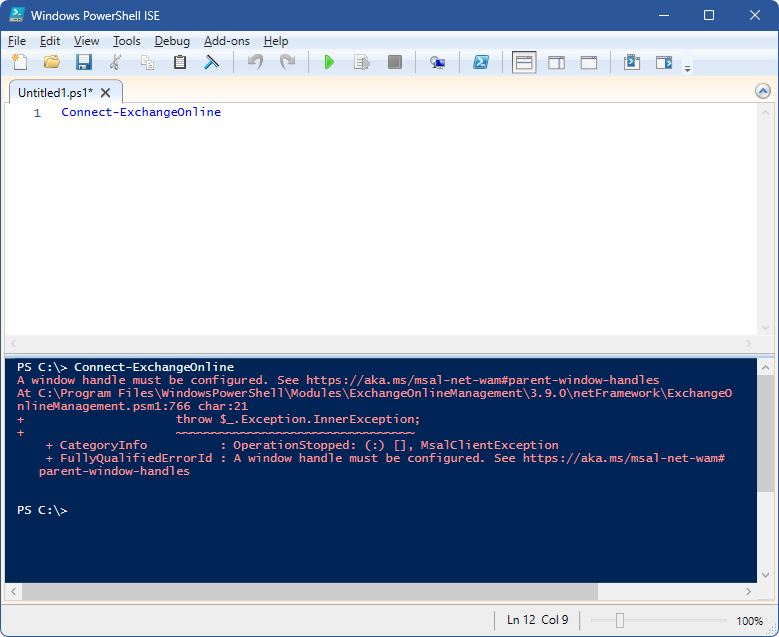
"A window handle must be configured. See https://aka.ms/msal-net-wam#parent-window-handles"
This error appeared in version 3.7.0 when the following change was made:
Integrated WAM (Web Account Manager) in Authentication flows to enhance security.
You may notice that this error occurs in PowerShell ISE but not in a standard PowerShell console. The issue also appears in any Windows based application - for example, a WinForms application that tries to execute
Connect-ExchangeOnline.
.NET console applications do work correctly.
Cause
The error occurs because Microsoft has made the (correct) decision that when an interactive login prompt appears, it must have a
parent window so that the dialog doesn't appear behind another window. This ensures the dialog is visible to the user. This is implemented by the
MSAL library.
However, the code they used to determine the parent window can be seen below.
/// <summary>
/// Initializes the Public Client Application or extract from map
/// if already present. Also it enters the instance in the map if newly created.
/// </summary>
/// <returns>An instance of PCA from the map or intializes and returns it</returns>
private IPublicClientApplication GetPublicClientInstance()
{
IPublicClientApplication publicClientApplication;
if (!MSALTokenProvider.publicClientApplicationMap.TryGetValue(this.context.AzureADAuthorizationEndpointUri, out publicClientApplication))
{
BrokerOptions brokerOption = new BrokerOptions(BrokerOptions.OperatingSystems.Windows);
publicClientApplication = (!RuntimeInformation.IsOSPlatform(OSPlatform.Windows) ? PublicClientApplicationBuilder.Create(this.context.ClientAppId).WithAuthority(this.context.AzureADAuthorizationEndpointUri, true).WithRedirectUri(this.context.ClientAppRedirectUri.ToString()).WithClientCapabilities(new string[] { "cp1" }).Build() : PublicClientApplicationBuilder.Create(this.context.ClientAppId).WithAuthority(this.context.AzureADAuthorizationEndpointUri, true).WithRedirectUri(this.context.ClientAppRedirectUri.ToString()).WithClientCapabilities(new string[] { "cp1" }).WithParentActivityOrWindow(new Func<IntPtr>(ParentWindowHandle.GetConsoleOrTerminalWindow)).WithBroker(brokerOption).Build());MSALTokenProvider.publicClientApplicationMap.TryAdd(this.context.AzureADAuthorizationEndpointUri, publicClientApplication);
}
return publicClientApplication;
}
As seen in the code above, this uses the
GetConsoleWindow low level API to determine the handle of the parent console window.
The documentation for this method states "We do not recommend using this content in new products"
They are using dated methods that they don't recommend themselves, but more importantly they are looking for a console window and therefore if you're not running a console app then there's no handle returned from the method.
Workaround 1: Disable WAM
The Connect-ExchangeOnline cmdlets now support the -DisableWAM parameter.
The DisableWAM switch disables Web Account Manager (WAM). You don't need to specify a value with this switch.
Starting in version 3.7.0, WAM is enabled by default when connecting to Exchange Online. If you encounter WAM-related issues during sign in, you can use this switch to disable WAM.
Workaround 2: Handle MSAL Authentication
$msalPath = [System.IO.Path]::GetDirectoryName((Get-Module ExchangeOnlineManagement).Path);
Add-Type -Path "$msalPath\Microsoft.IdentityModel.Abstractions.dll";
Add-Type -Path "$msalPath\Microsoft.Identity.Client.dll";
[Microsoft.Identity.Client.IPublicClientApplication] $application = [Microsoft.Identity.Client.PublicClientApplicationBuilder]::Create("fb78d390-0c51-40cd-8e17-fdbfab77341b").WithDefaultRedirectUri().Build();
$result = $application.AcquireTokenInteractive([string[]]"https://outlook.office365.com/.default").ExecuteAsync().Result;
Connect-ExchangeOnline -AccessToken $result.AccessToken -UserPrincipalName $result.Account.Username;
Workaround 3: Console Window
You can also open a console window in PowerShell ISE or your windows application, this is not an ideal solution as it opens a console window in the background.
$consoleSupportSource = @’
using System;
using System.Runtime.InteropServices;
public class ConsoleSupportMethods
{
[DllImport("kernel32.dll", SetLastError = true)]
public static extern int AllocConsole();
[DllImport("kernel32.dll", SetLastError = true)]
public static extern int FreeConsole();
}
‘@
Add-Type -TypeDefinition $consoleSupportSource
try
{
[ConsoleSupportMethods]::AllocConsole();
Connect-ExchangeOnline;
}
catch
{
throw;
}
finally
{
[ConsoleSupportMethods]::FreeConsole();
}